# React Step Wizard
A flexible multistep wizard built for React
[](https://badge.fury.io/js/react-step-wizard)
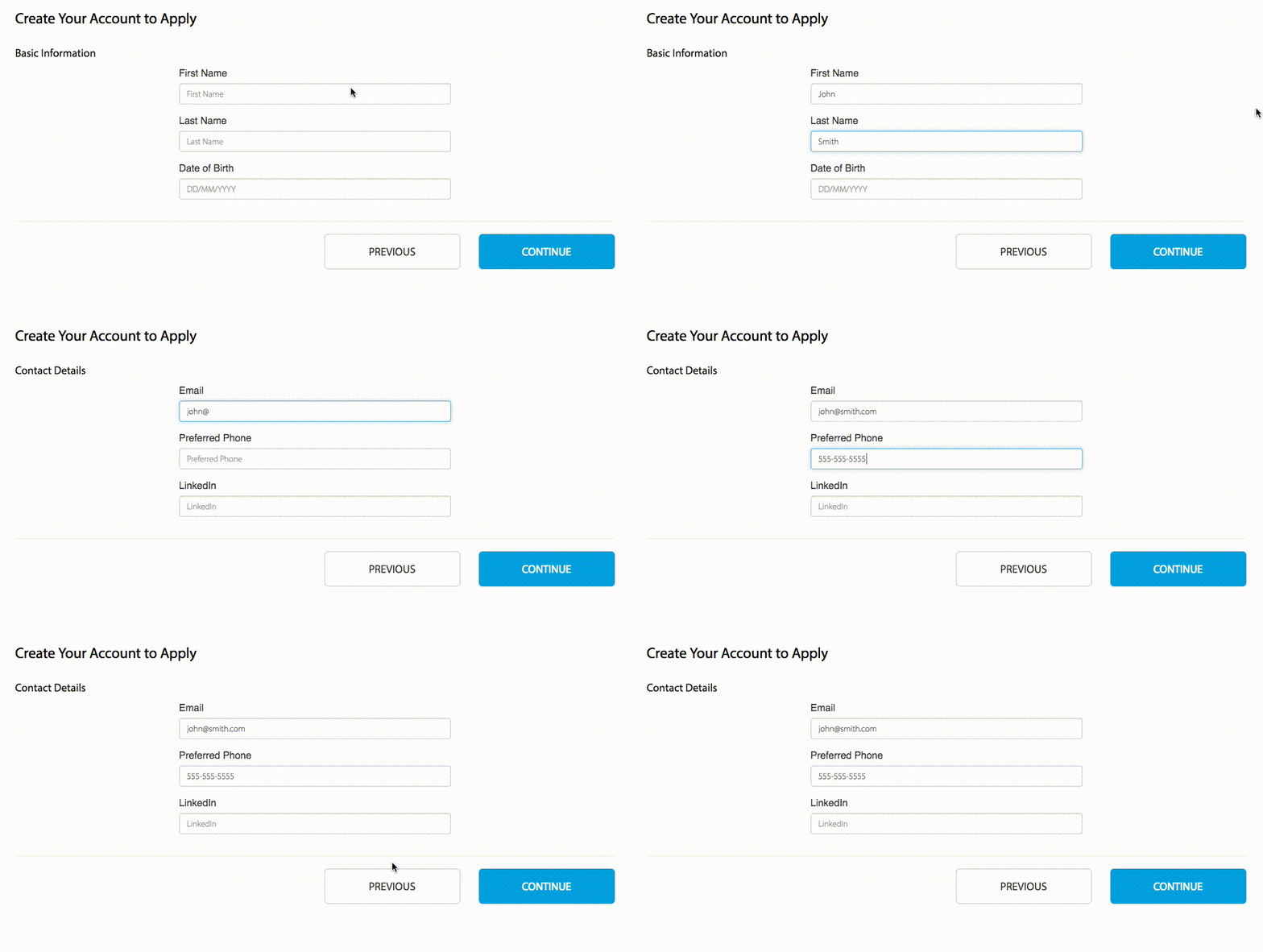
### Try It Out!
Click here to see a live example! See example source code: [](https://github.com/jcmcneal/react-step-wizard/tree/master/app)
##### Showcasing
If you've made something you're proud of with `react-step-wizard` and want to show it off to the world, send me a message with a link to your project and I'll add it to the README!
### Install
```
npm install react-step-wizard
```
### Import Component
```js
import StepWizard from "react-step-wizard";
```
### JSX Syntax
Simply create a wrapper with `` and each child component will be treated as an individual step.
```jsx
...
```
### Props
I wanted this step wizard to be as flexible as possible so each child has access to the StepWizard functions via `this.props`
For example:
```html
Step {this.props.currentStep}
Total Steps: {this.props.totalSteps}
Is Active: {this.props.isActive}
```
#### User-Defined Props
| Prop | Data Type | Default | Description |
| ------------- | ---------- | --------- | ---------------------------------------------------------------------------------------- |
| hashKey | `string` | `step{n}` | Prop on child component to use when updating URL hash. Corresponds with `isHashEnabled`. |
| initialStep | `integer` | 1 |
| instance | `function` | | Provides an instance of `StepWizard` to control from anywhere in your app |
| isHashEnabled | `bool` | false | Persists the current step in the URL (hash) |
| isLazyMount | `boolean` | false | Only mounts the child component when `isActive` is true |
| nav | `node` | | Create a custom navigation component to include in the wizard |
| onStepChange | `function` | | Callback for step change |
| transitions | `object` | | CSS classes for transitioning between steps |
#### Props Accessible On Each Child (_Step_) Component
| Prop | Data Type | Parameters |
| ------------- | ---------- | ------------------------------------- |
| isActive | `boolean` |
| currentStep | `integer` |
| totalSteps | `integer` |
| firstStep | `function` |
| lastStep | `function` |
| nextStep | `function` |
| previousStep | `function` |
| goToStep | `function` | `integer` : `goToStep(3)` |
| goToStep | `function` | `string` : `goToStep('step3')` |
| goToNamedStep | `function` | `string` : `goToNamedStep('contact')` |
---
### Navigation
If you wish to include a navigation in your wizard you have the flexibility to create one however you want. All the props available to the steps will also be provided to your nav component.
**Position**: By default the nav will be added to the top. If you want it on the bottom I suggest adding a class to the `StepWizard` component with `flex-direction: column-reverse`. That's just one solution.
Be sure to pass your component in JSX syntax like this:
```jsx
import CoolNav from "./CoolNav";
}>...;
```
### Transitions
The default transitions are using CSS taken from [animate.css](https://daneden.github.io/animate.css/). You can override the transitions by passing in custom CSS classes to the `transitions` prop in ``.
```jsx
let custom = {
enterRight: 'your custom css transition classes',
enterLeft : 'your custom css transition classes',
exitRight : 'your custom css transition classes',
exitLeft : 'your custom css transition classes',
intro : 'your custom css transition classes'
}
...
```
### Initial Step
The order of your steps in JSX will be loaded in the same order in the browser. However, you may specify which step to start on page load by using the `initialStep` prop. It accepts a numeric value corresponding to the step order.
```jsx
...
```
### Persist Step In URL
An example of how `isHashEnabled` and `hashKey` work together:
```jsx
// https://domain.com/#basic
// https://domain.com/#contact
// https://domain.com/#step3
```
As you can see, the `hashKey` corresponds with the url hash and will be updated when the step becomes active. The `hashKey` defaults to `step{n}`. If `isHashEnabled` is `false` then the url hash, or `hashKey`, will not be used.
When isHashEnabled is true, `goToStep` accepts a `hashKey` as an argument
### Use named steps
If we don't need to use hash keys and just simply want to switch steps by their names we can use use `stepName`.
```jsx
// step3
```
Now we can use `goToNamedStep` and set `stepName` as an argument